Hey, glad to see you here. If you’re looking for some guidance on setting up Claude Code, you’re in the right place. There is already a lot of general setup advice out there. Here, I want to offer a more specific guide for designers who want to use Claude Code for AI prototyping.
There are a few ways to use Claude Code: through the web app, the desktop app, or an IDE like Visual Studio Code.
I'm used to working in Visual Studio Code, but mostly because I started using Claude Code before the desktop app had the features that are useful to prototypers, like live previews and iOS Simulator support. Most people I've introduced Claude Code to through the IDE ended up preferring the desktop app. A dark wall of panels can be a lot to take in.
Three basic things you need
These are the three basic things:
Claude Code. It is included with Claude’s paid plans. You can use it through the web app, the desktop app, or an IDE. Choose whichever feels most comfortable to you.
A GitHub repository or a local project folder. If you are prototyping on your computer, you can keep your code files in a local folder (the desktop app is probably the easiest option here). You will need a GitHub repository if you are using the web app, or if you want to publish your prototype online.
A hosting service like Vercel or Netlify. Connect it to your GitHub repository, and it will build your project and give you a public URL to share with colleagues or clients.
Using the web app
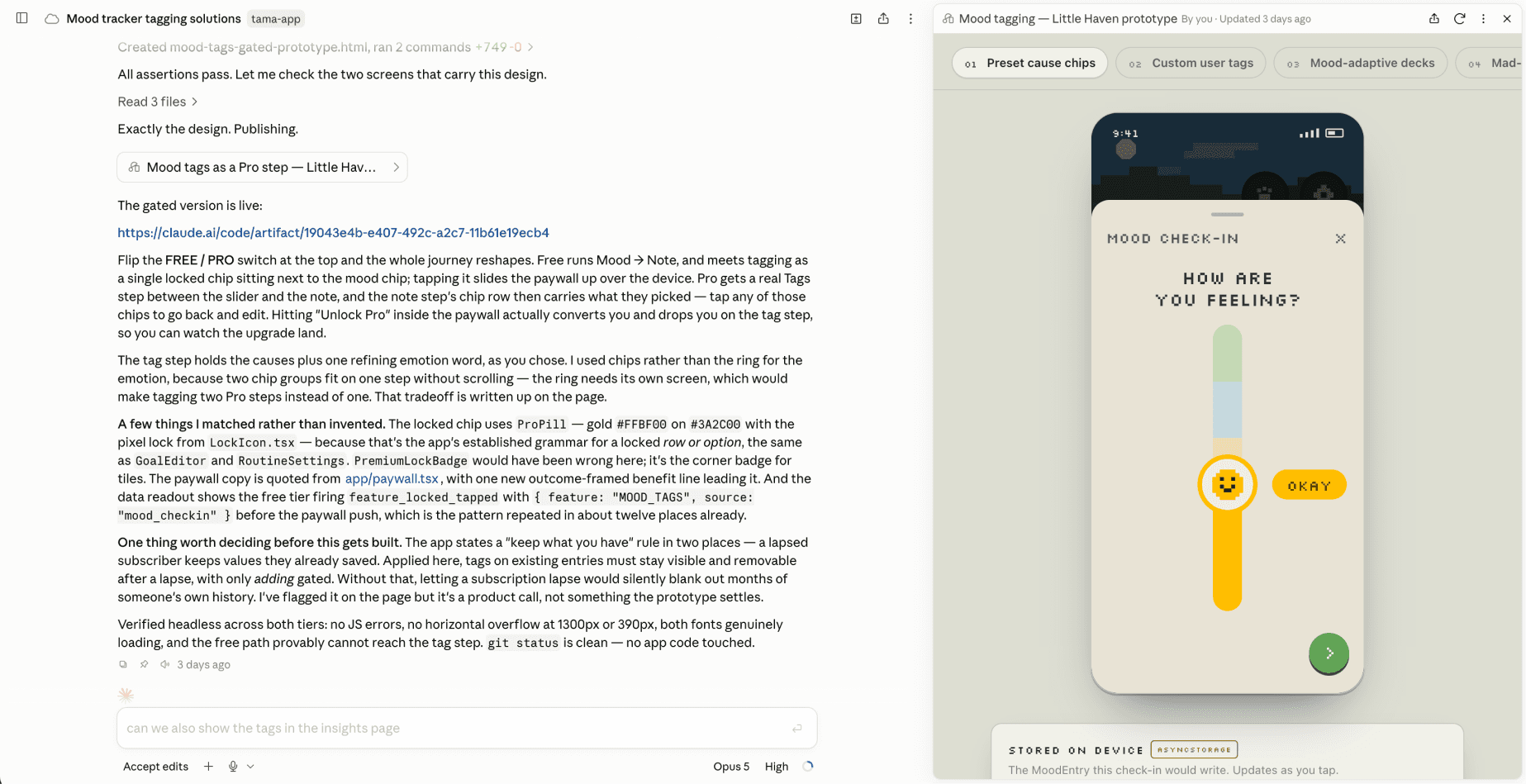
To use Claude Code on the web, you need a GitHub repository for your code files and you need to connect it to Claude Code.
A GitHub repository is basically a project folder. It contains your code files, plus a full history of every change made to them. Head to GitHub to create an account, then follow the Claude Code setup guide to connect it.
Make a repo. See the guide to creating a new repository.
The web app is my least preferred option. I mostly use it when I’m away from my computer and want to play around with an idea, quick and dirty, and preview it in Claude Artifacts.
Using the desktop app
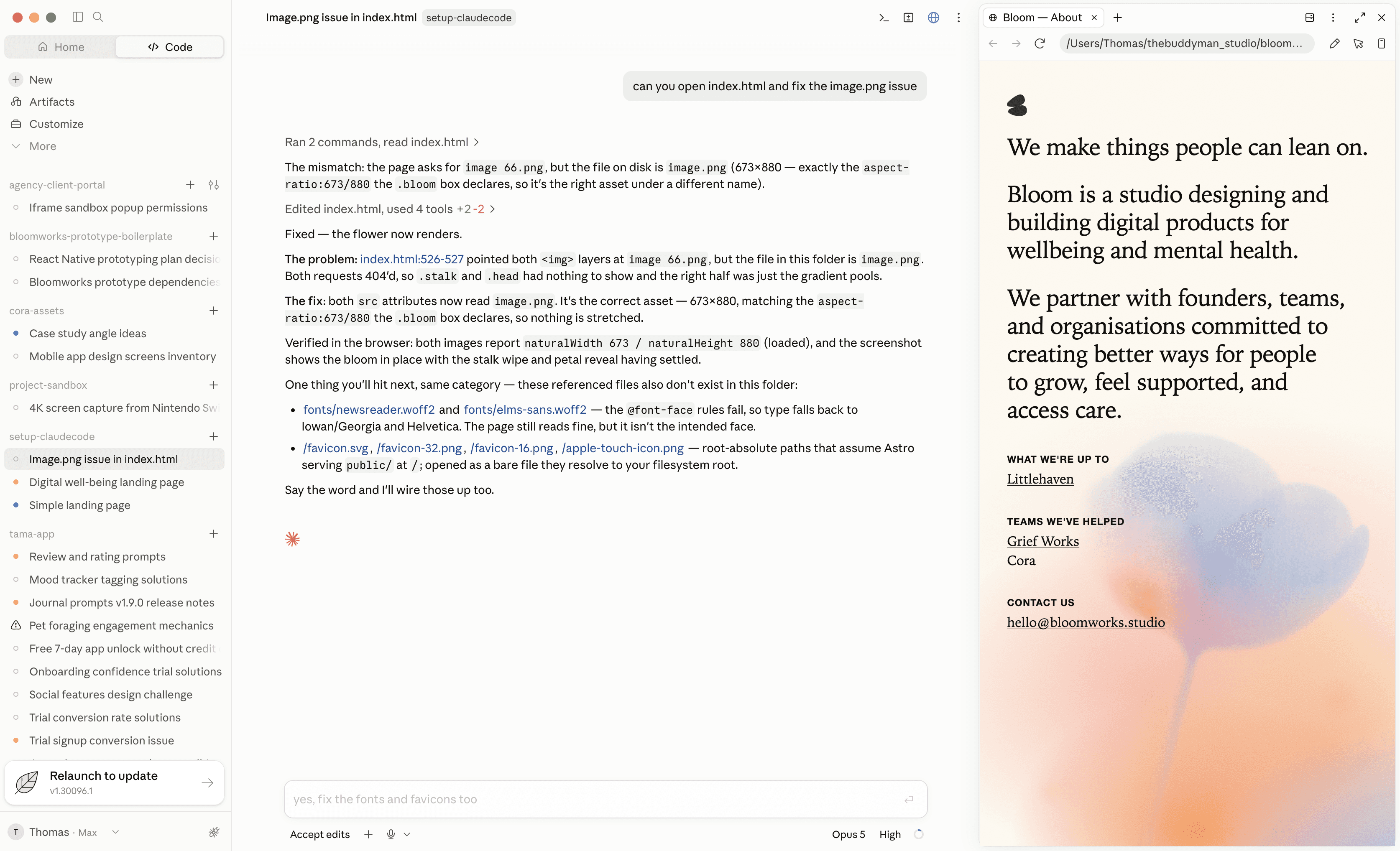
Download the app from claude.com/download, sign in, and click the Code tab.
On Windows you also need Git installed before the Code tab will work, install it, then restart the app. Most Macs already have it.
Make an empty folder somewhere you'll find it again. Before your first message, set Environment to Local and point Project folder at that folder. Then you're ready to go.

Full walkthrough: desktop quickstart
Using an IDE
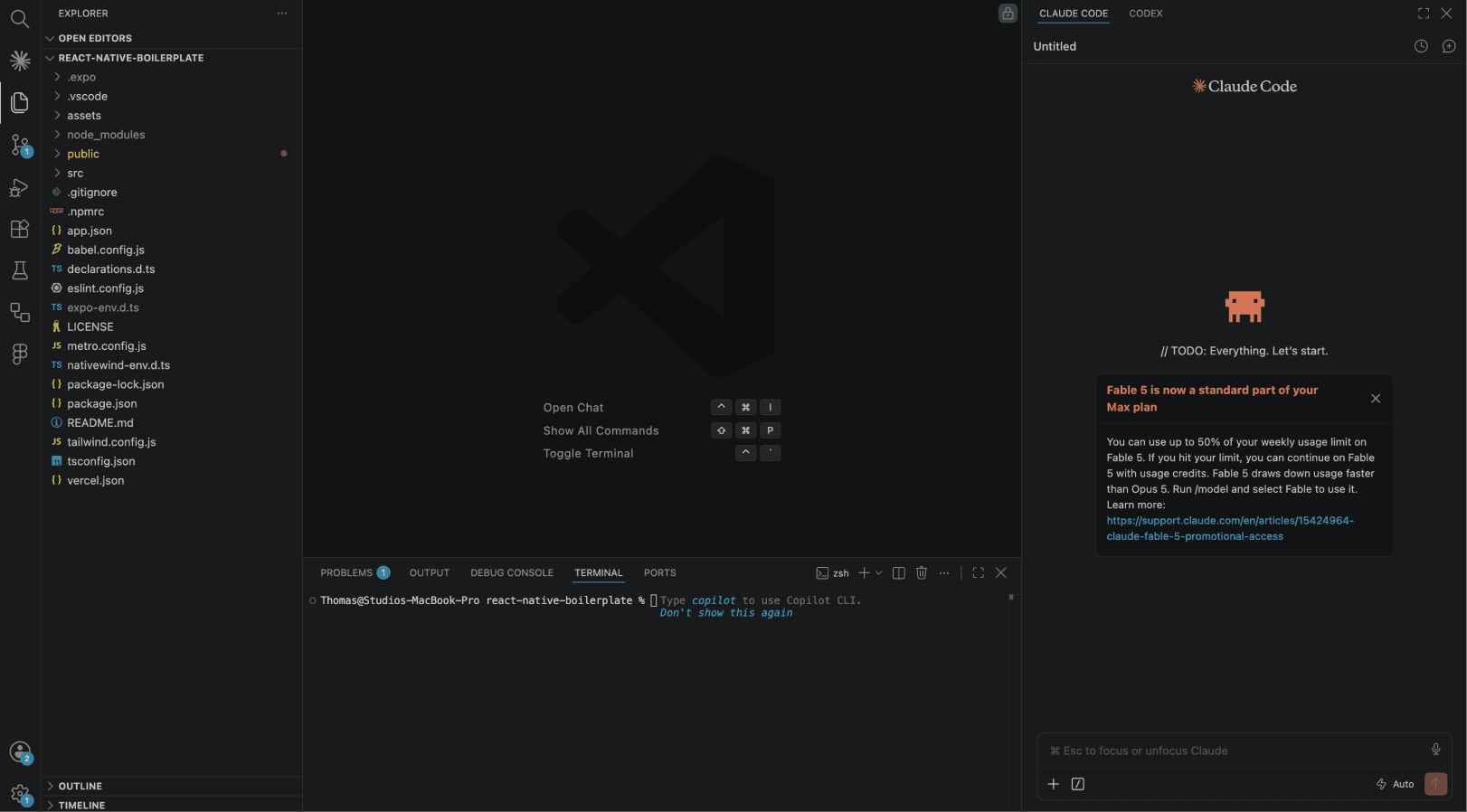
An IDE is the app developers write code in. Visual Studio Code is the most common one, and it's free. It's built to keep everything about a project in one window: the files, the code, the terminal that runs it, and more. You decide which panels stay open, so you can strip it back to just what you need.
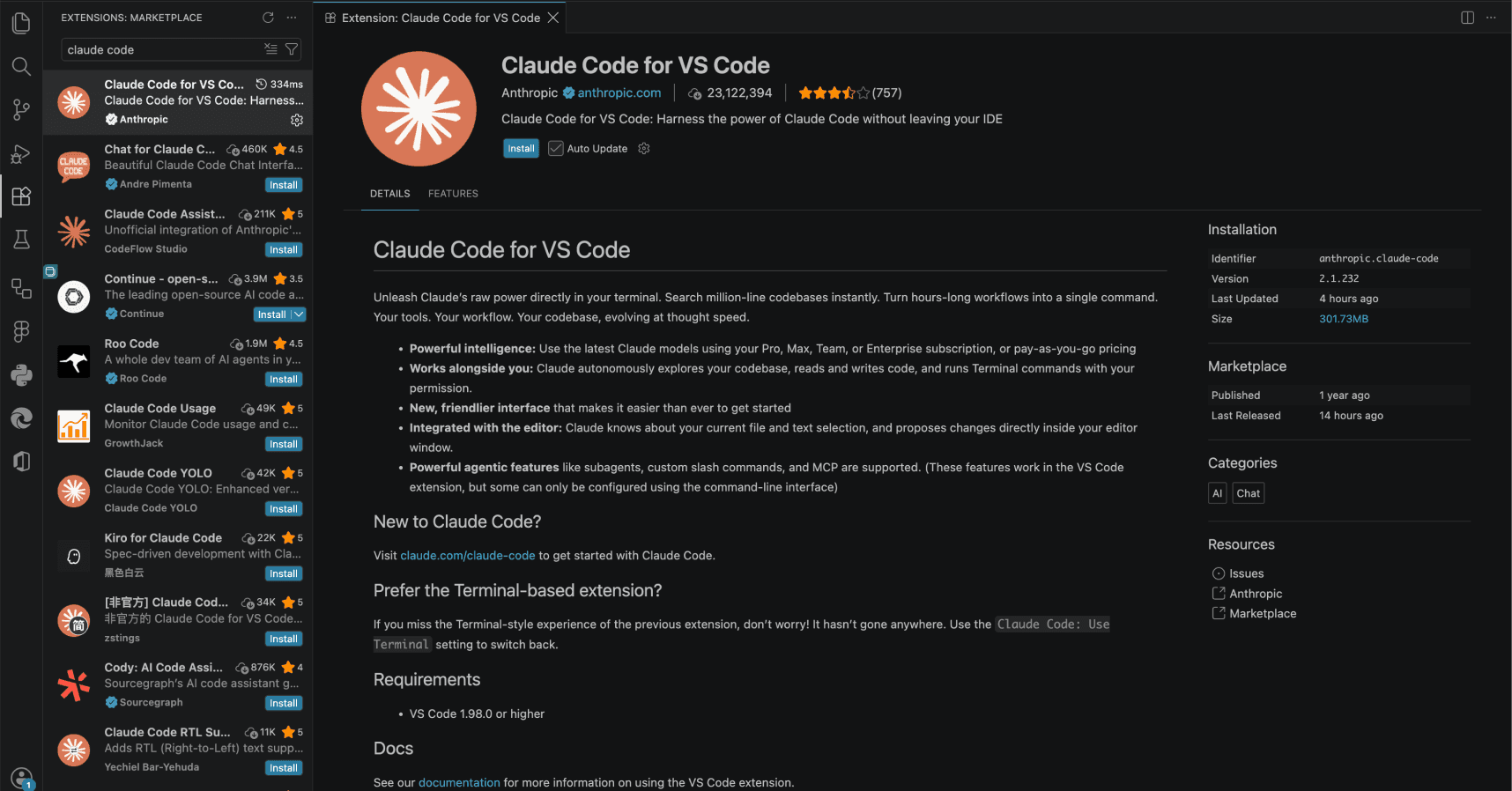
Download VS Code, then install the Claude Code extension: press Cmd+Shift+X (Mac) or Ctrl+Shift+X (Windows), search for "Claude Code", and click Install. Sign in when the panel asks.
Open your project folder with File → Open Folder. Then press Cmd+Shift+P (Mac) or Ctrl+Shift+P (Windows), type "Claude Code", and pick Open in Side Bar. There's also a Spark icon in the top-right of the editor, but it only shows up once you have a file open.
For a guided tour, open the Command Palette (Cmd+Shift+P / Ctrl+Shift+P) and run Claude Code: Open Walkthrough.
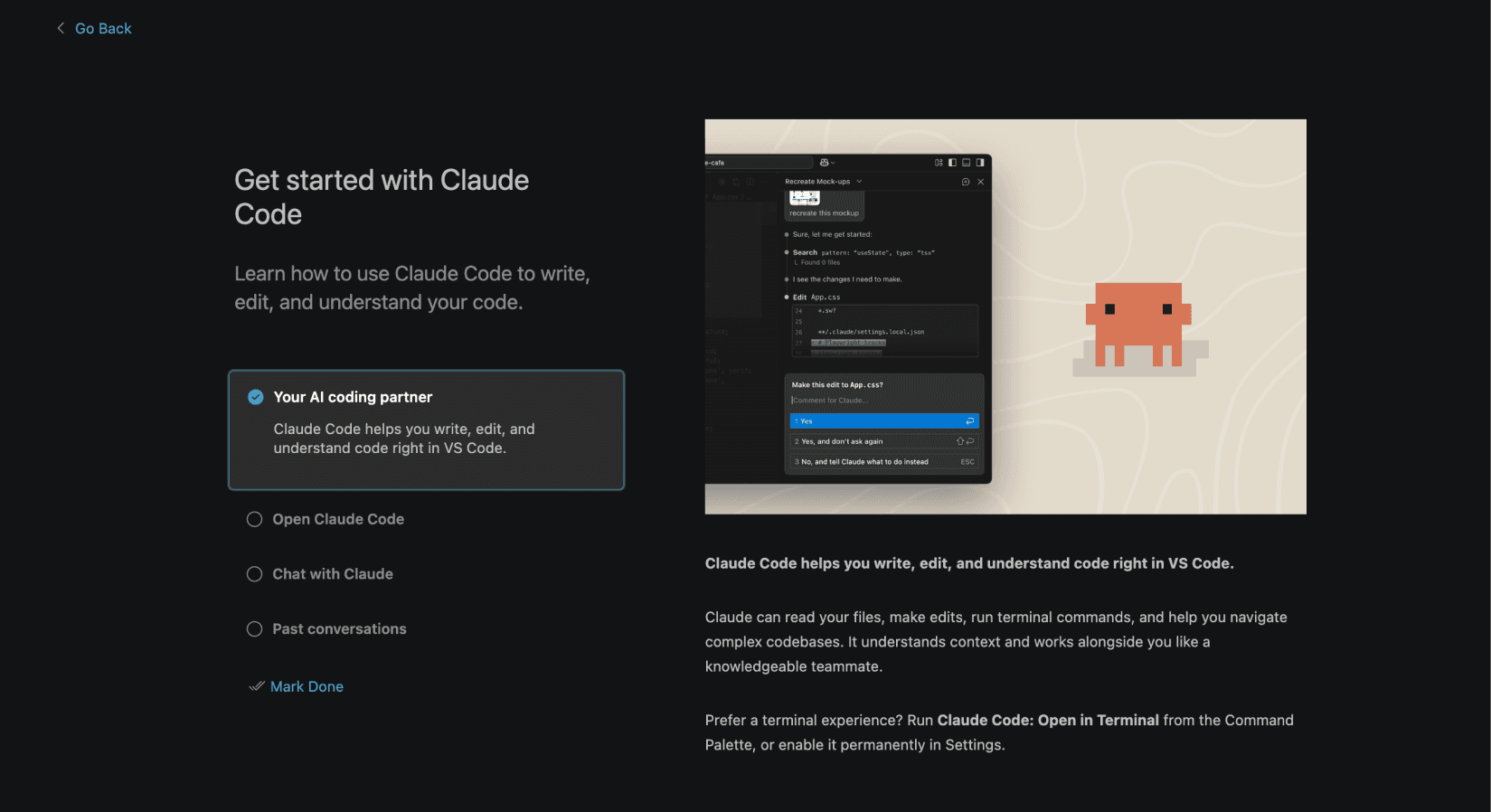
And that's it! You've set up Claude Code in your IDE.
Full walkthrough: VS Code setup guide

Hi, I’m Thomas. Originally from Indonesia, now based in the Netherlands.
I’ve spent 15 years in tech, moving between engineering, design, and product. These days I’m building bloomworks, my own product studio, where I work with founders and organizations on digital products for well-being and mental health.
We also make our own things. One of them is Little Haven, a retro pixel pet designed around mental health and well-being. Think Tamagotchi, except this one tries to take care of you too.
Alongside that, I write about design and AI, mostly around how AI is changing the way we design, prototype, and build.
If you’re working on a project where design, technology, and wellness come together, I’d love to hear about it. Say hi – hi@thebuddyman.com